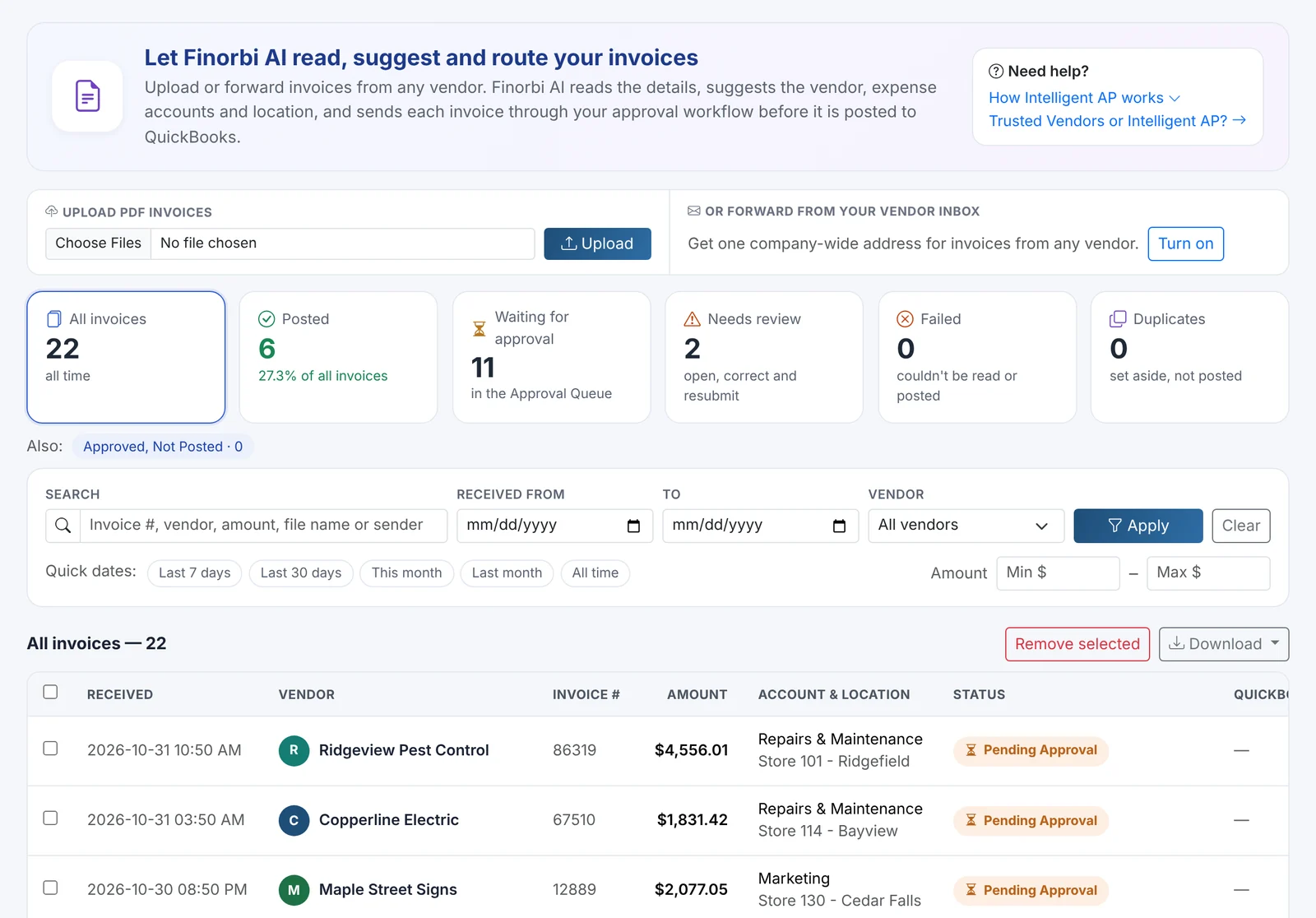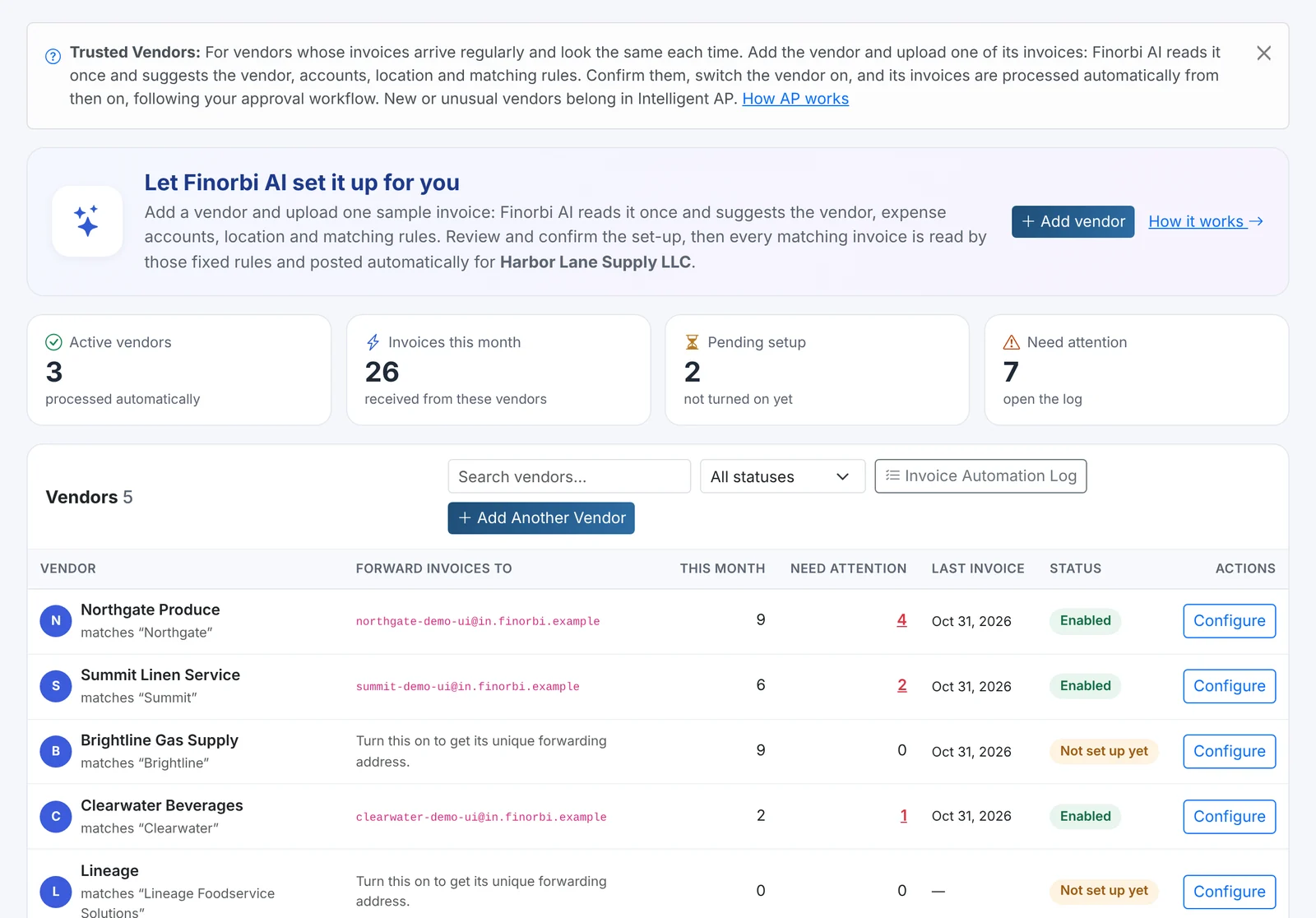
Deciding what to pay each week usually means exporting open bills, sorting a spreadsheet, emailing it for approval and then keying payments back into QuickBooks Online one at a time. Payment Runs turn that into one guided flow that records every payment in QuickBooks Online and documents it for your files.
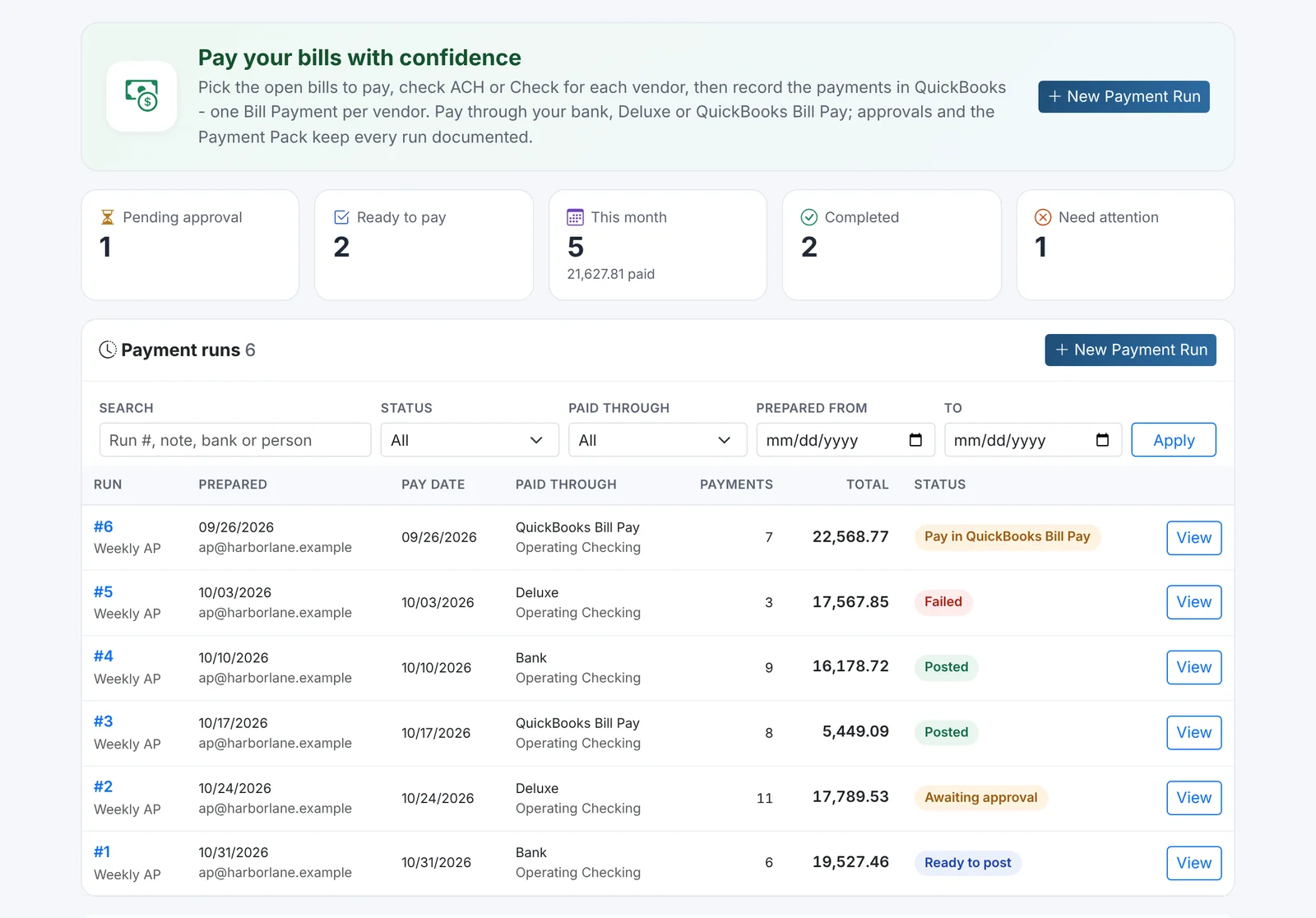
1. Find the bills to pay
Finorbi reads your open bills live from QuickBooks Online. Narrow them down with:
- Due date or bill date range,
- Where the bill came from - Trusted Vendors, Intelligent AP, Cards, Expenses, uploads or bills entered directly in QuickBooks Online,
- Vendors - pick any number from a searchable list,
- Locations - pick any number of stores,
- Payment method - ACH, check or credit card,
- Due - overdue, or due in the next 7, 14 or 30 days,
- Bill amount - minimum and maximum.
2. Choose what to pay and how
- Tick whole vendors or individual bills, and pay a partial amount when you need to.
- Each vendor gets a payment method - ACH, check or credit card. Finorbi suggests ACH when QuickBooks Online has the vendor's bank details and remembers your choice next time.
- Open vendor credits can be applied automatically, oldest first.
- "Paid by card before" - Finorbi checks your company card statements and warns you when a vendor has been paid by card in the past, so you don't pay the same bill twice.
3. Approve
If an approval rule covers payment runs, the run goes to the approver as one item - with a PDF showing every bill, its invoice and its approval history. Approvers can approve or send it back; a run that's sent back can be changed and resubmitted as the same run number.
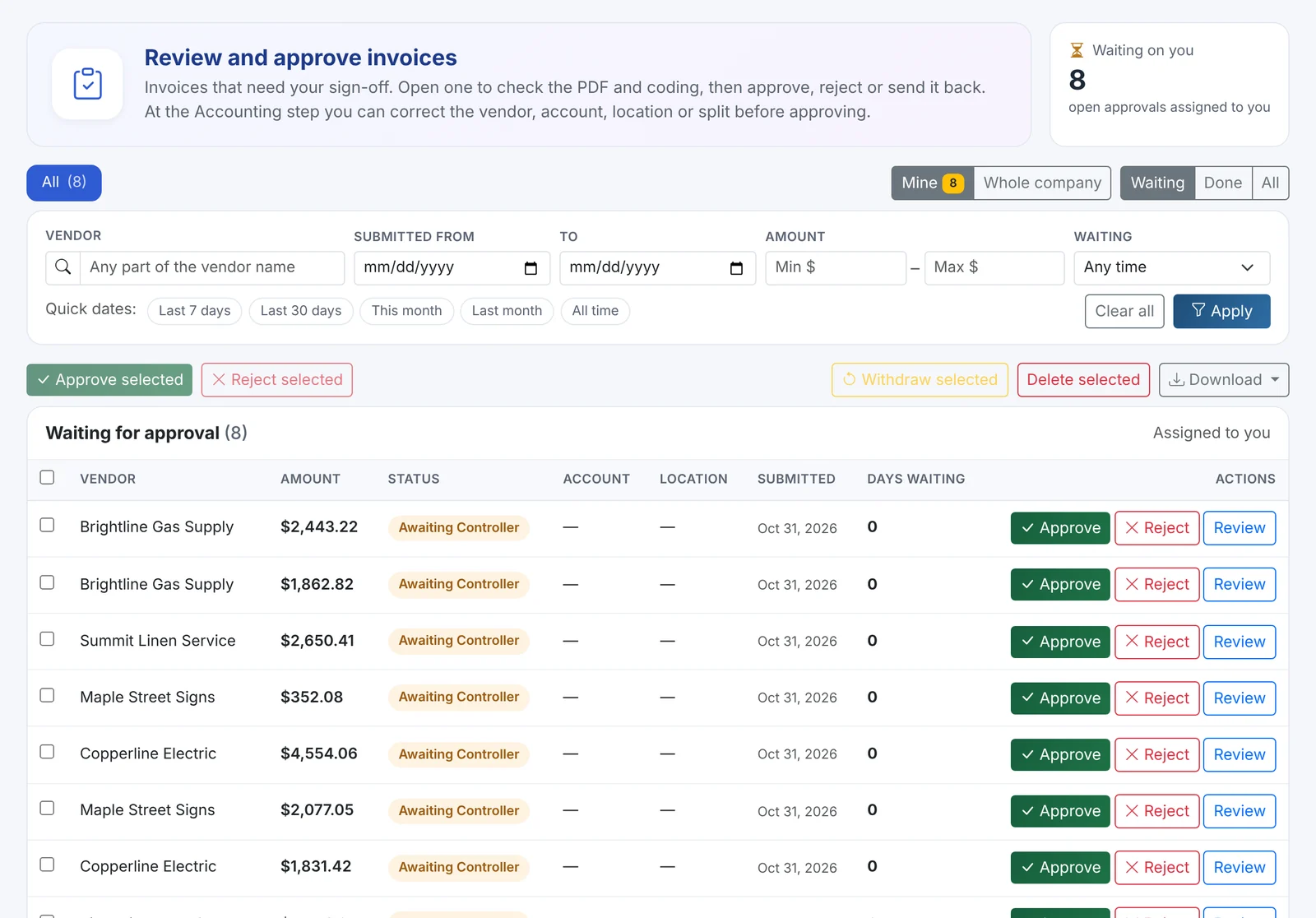
4. Pay - your way
| Pay through | What Finorbi does |
|---|---|
| Your bank | Records one Bill Payment per vendor in QuickBooks Online, with ACH references and check numbers (or marks checks to print). |
| Deluxe | Numbers one check per check vendor in sequence (never reusing a number), records the payments, and gives you Deluxe's batch import file - CSV, plus an Excel copy that keeps ZIP codes and numbers intact. Upload Deluxe's payment log afterwards to bring statuses back. |
| QuickBooks Bill Pay | Lists what to pay; you pay in QuickBooks Bill Pay and tick each payment off - Finorbi confirms against the bills before marking them paid. |
| Credit card | Records the bill payment against the company card account you choose. |
Before posting, Finorbi re-checks each bill's open balance, so a bill paid in the meantime is never paid twice.
5. Keep the Payment Pack
Every run produces a Payment Pack PDF:
- a cover page with totals by method,
- an index of every vendor, bill, location and page,
- a payment page per vendor - method, reference or check number, bills and credits applied,
- each invoice, stamped PAID with the run, date and reference,
- each bill's approval trail - how it arrived, who approved it, when it was posted and how it was paid.
It's the documentation your auditors and owners ask for, created automatically. An Excel export of the run is available too.
Built for multi-location AP
Filter by store, see each bill's location in the run and in the Payment Pack, and pay invoices that were split across stores as one document.