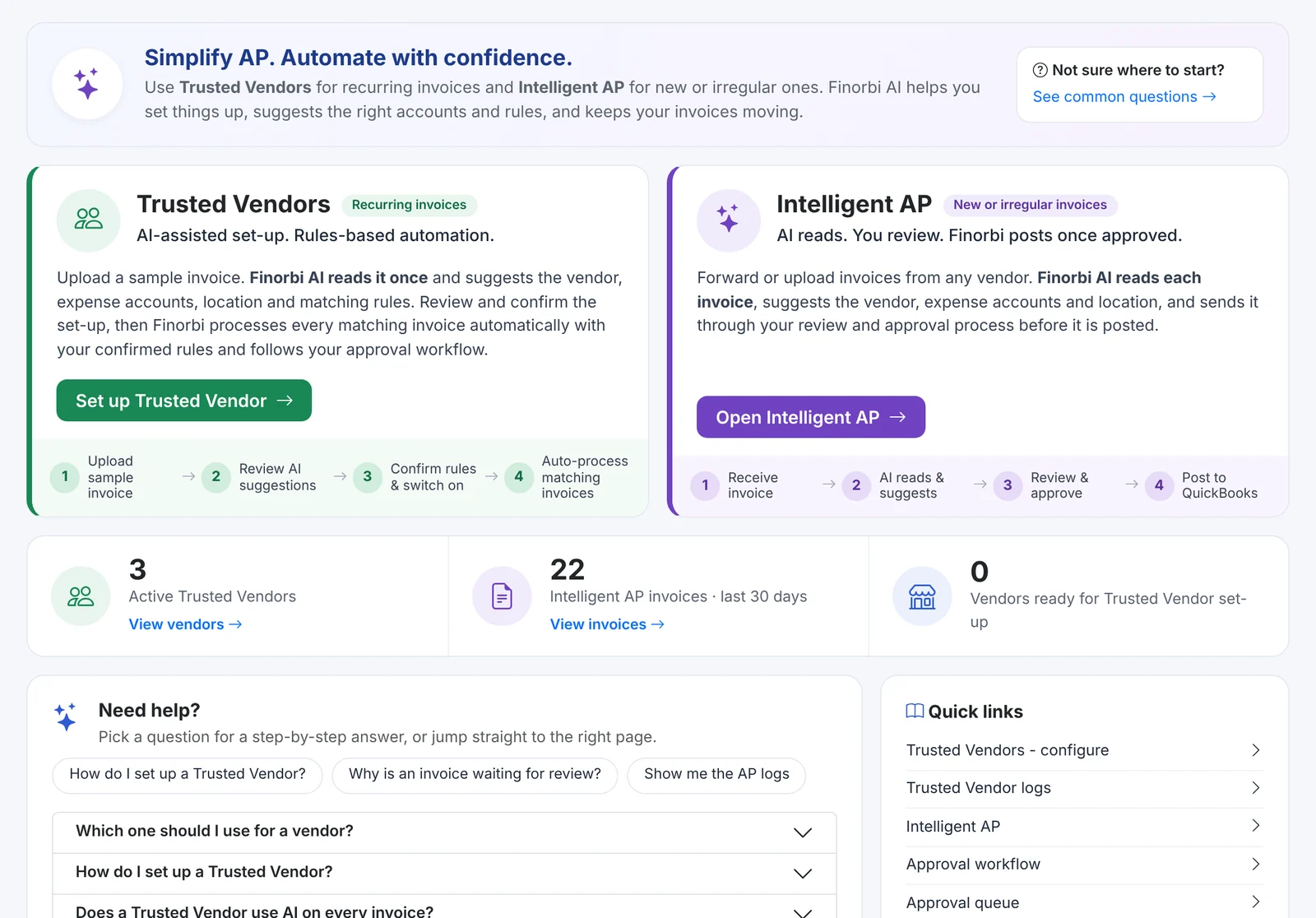
Some invoices follow a pattern. Most don't. A plumber's handwritten service ticket, a new supplier's first invoice, a multi-page PDF covering three stores - these are the invoices that eat an AP clerk's day.
Intelligent AP is Finorbi's AI invoice pipeline for exactly these invoices. You send it the invoice; it gives you back a Bill that's ready to approve and post to QuickBooks Online.
How invoices get in
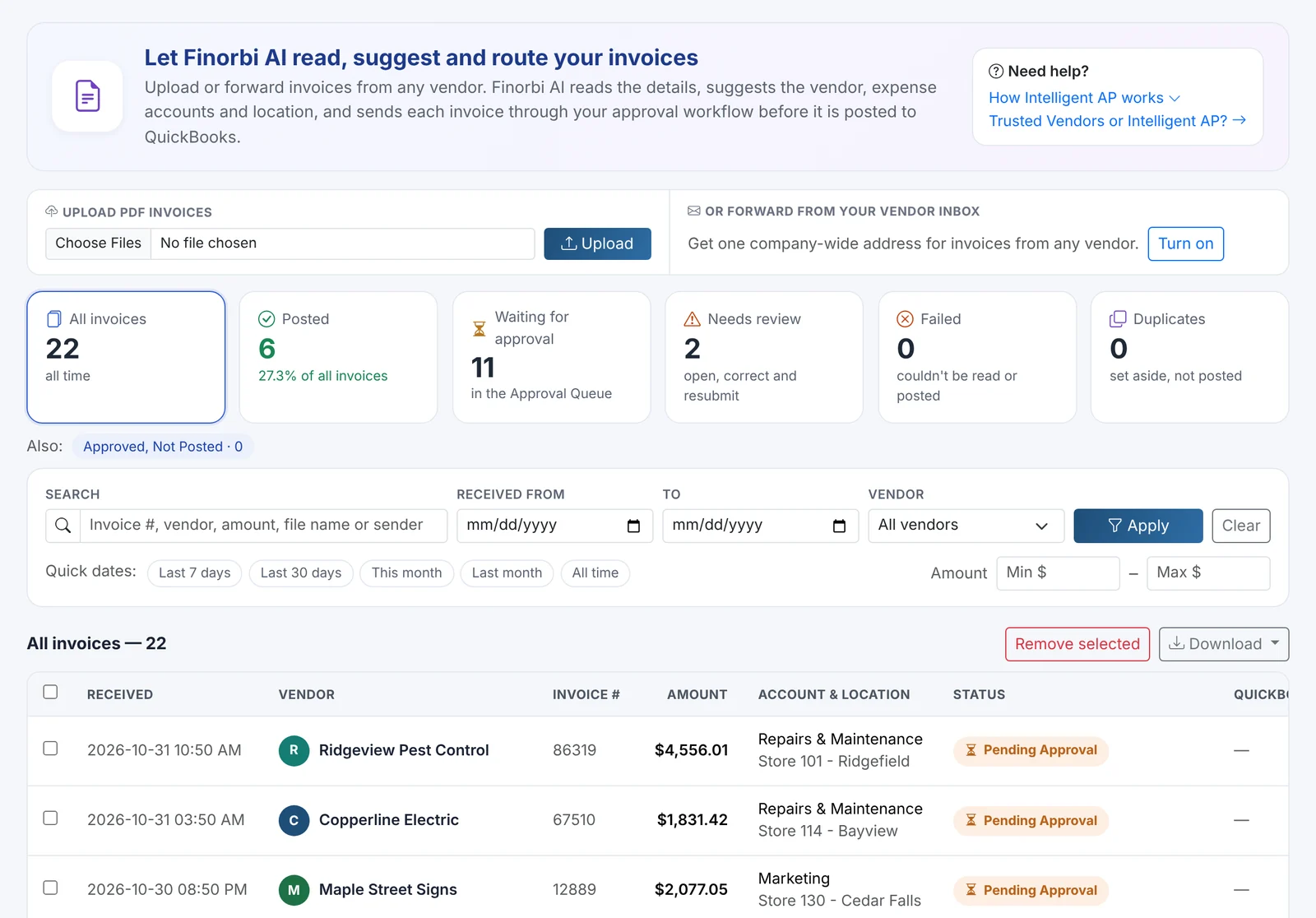
- Forward by email - every company gets an Intelligent AP inbox. Forward vendor emails (with the PDF attached) or set up an automatic forward from your AP mailbox.
- Upload PDFs - drag and drop one invoice or a batch of them.
Each invoice appears in the list within moments, with its status: received, waiting for approval, needs review, posted, failed or duplicate.
What the AI reads
For every invoice Finorbi extracts:
- Vendor - matched to your QuickBooks Online vendor list (or flagged as new),
- Invoice number, invoice date and due date,
- Line items with descriptions and amounts,
- Invoice total - and a check that the lines add up to it,
- Location / store - from the ship-to address, store number or site name on the invoice,
- a confidence score for the reading as a whole.
It then suggests the expense account for each line, based on how you've coded that vendor and similar items before. The more you use it, the better the suggestions get.
Review only what needs you
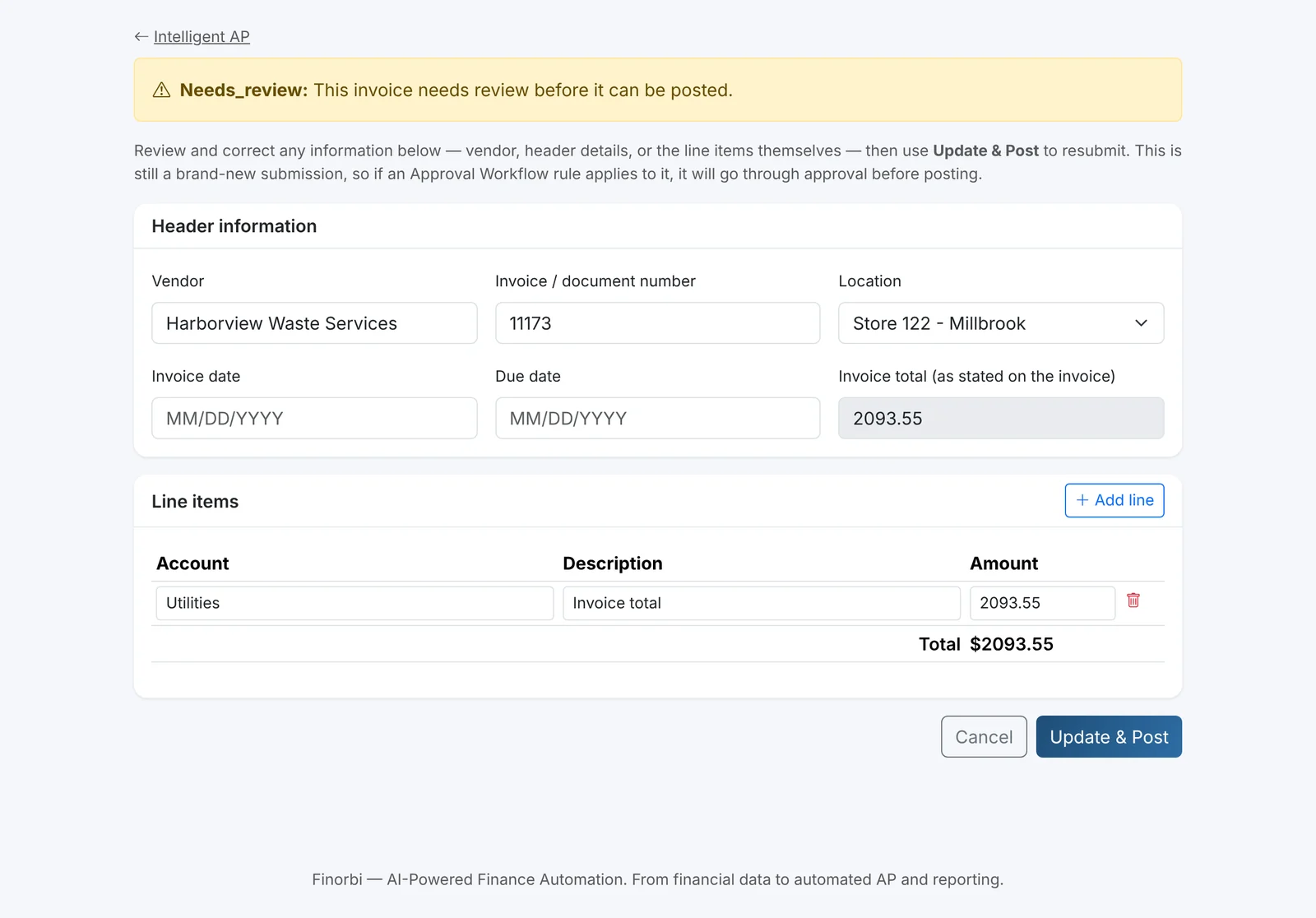
When something is unclear - an unknown vendor, a low-confidence total, a missing location - the invoice goes to Needs review. You see the original PDF next to the extracted fields and can fix anything: the vendor, the header details or the line items themselves.
Built for multi-location businesses
- Location detection reads the store or site the invoice belongs to.
- Split by location: one invoice covering several stores can become one Bill per store, so each location's P&L carries its own cost - and the invoice is still treated as one document everywhere (approvals, payment packs).
- Location-based approvals: route the invoice to the manager of that store automatically.
Approval and posting
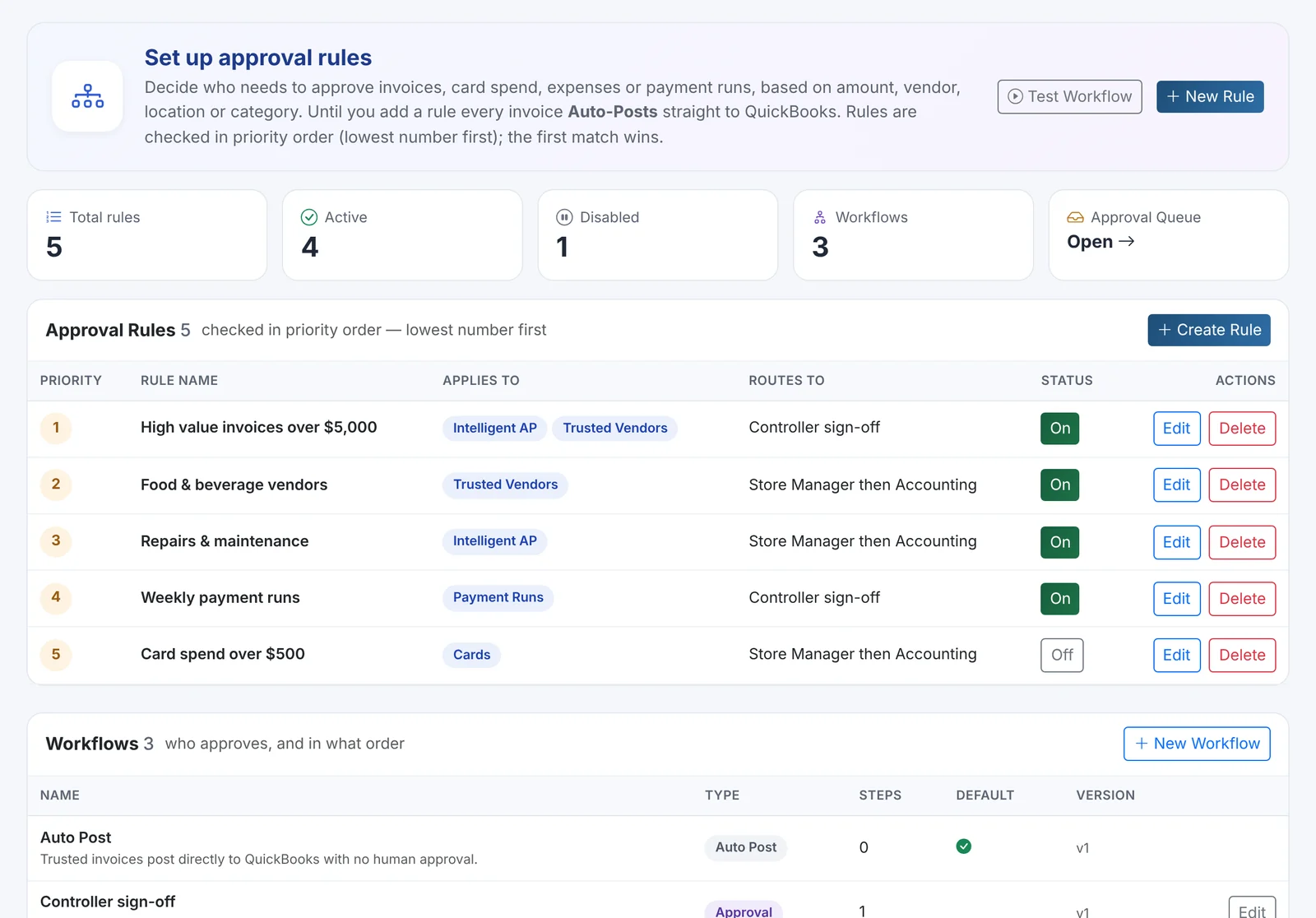
Intelligent AP plugs straight into Finorbi's Approval Workflows. If a rule matches - by amount, vendor, location or account - the invoice waits in the Approval Queue for the right people. When it's approved (or if no rule applies), Finorbi posts a Bill to QuickBooks Online with the invoice PDF attached, so anyone looking at the Bill later can see the source document.
Safety nets
- Duplicate detection stops the same invoice being posted twice, even if it's forwarded twice.
- Totals check flags invoices whose lines don't add up.
- Full history: when it arrived, who approved it, when it posted and which Bill it became.
- Search and filters by vendor, status, date, amount and location, plus Excel export.
Monthly invoice allowance
Intelligent AP and Trusted Vendors share your plan's monthly AP invoice allowance: 1,000 invoices a month on Professional + AP Automation and 4,000 on Professional + AP Automation Plus. Extra credits can be added at any time and carry over until they're used. The 14-day trial includes AP processing so you can test it on your own invoices.
Turn repeat invoices into Trusted Vendors
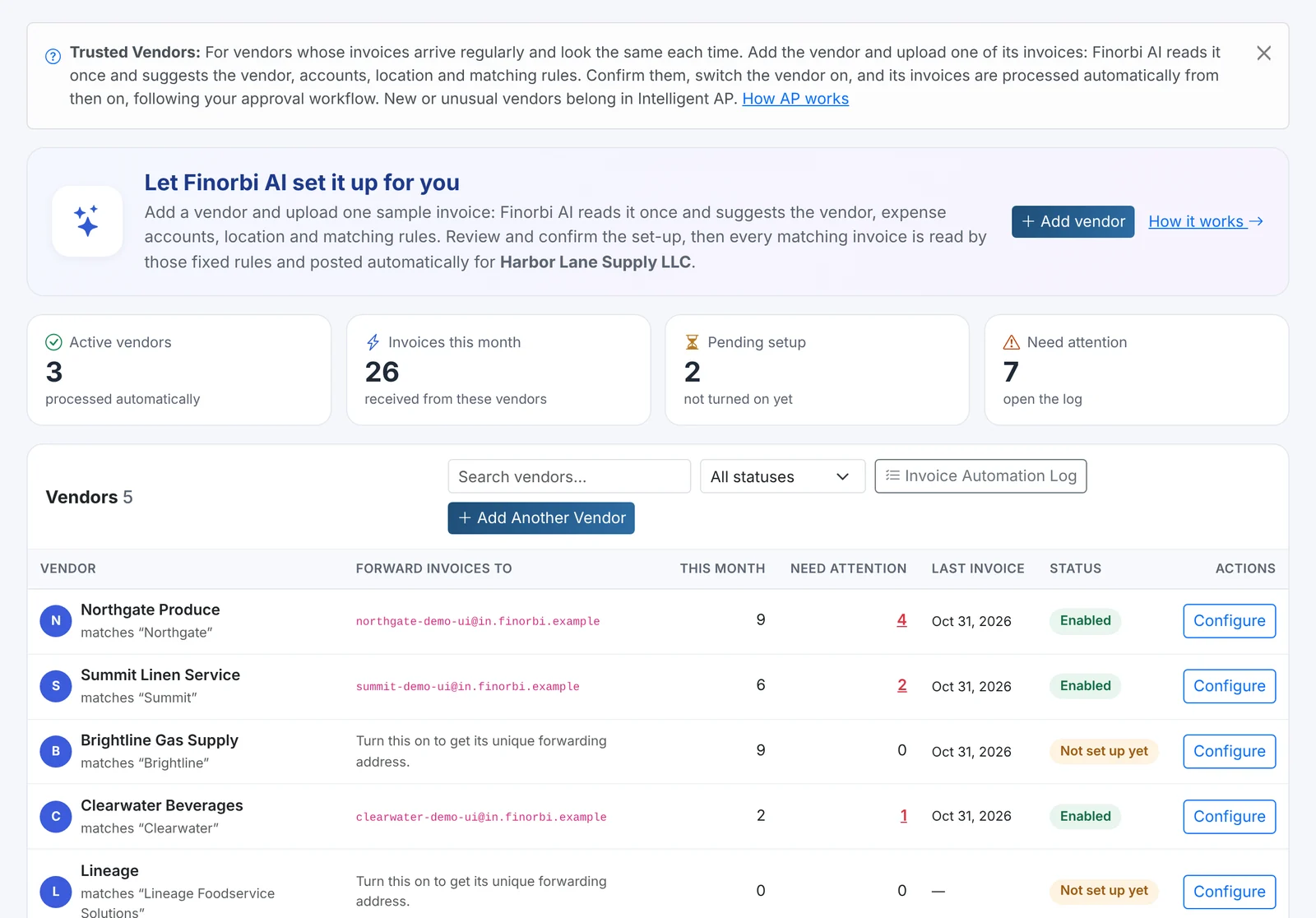
When a vendor keeps appearing in Intelligent AP, Finorbi suggests making it a Trusted Vendor, so its invoices post the same way every time with even less review. (See Trusted Vendors: Put Recurring Invoices on Autopilot.)