If you run accounts payable for a growing business - especially one with several locations - you know the routine. Invoices arrive by email, by mail and by text message. Someone keys each one into QuickBooks Online, guesses the right account, tracks down a manager for approval, and later works out which bills to pay this week. Every step is manual, and every step is a chance for a duplicate payment, a missed discount or a bill coded to the wrong store.
Finorbi's AP Automation replaces that routine with one connected flow that lives right next to your QuickBooks Online company:
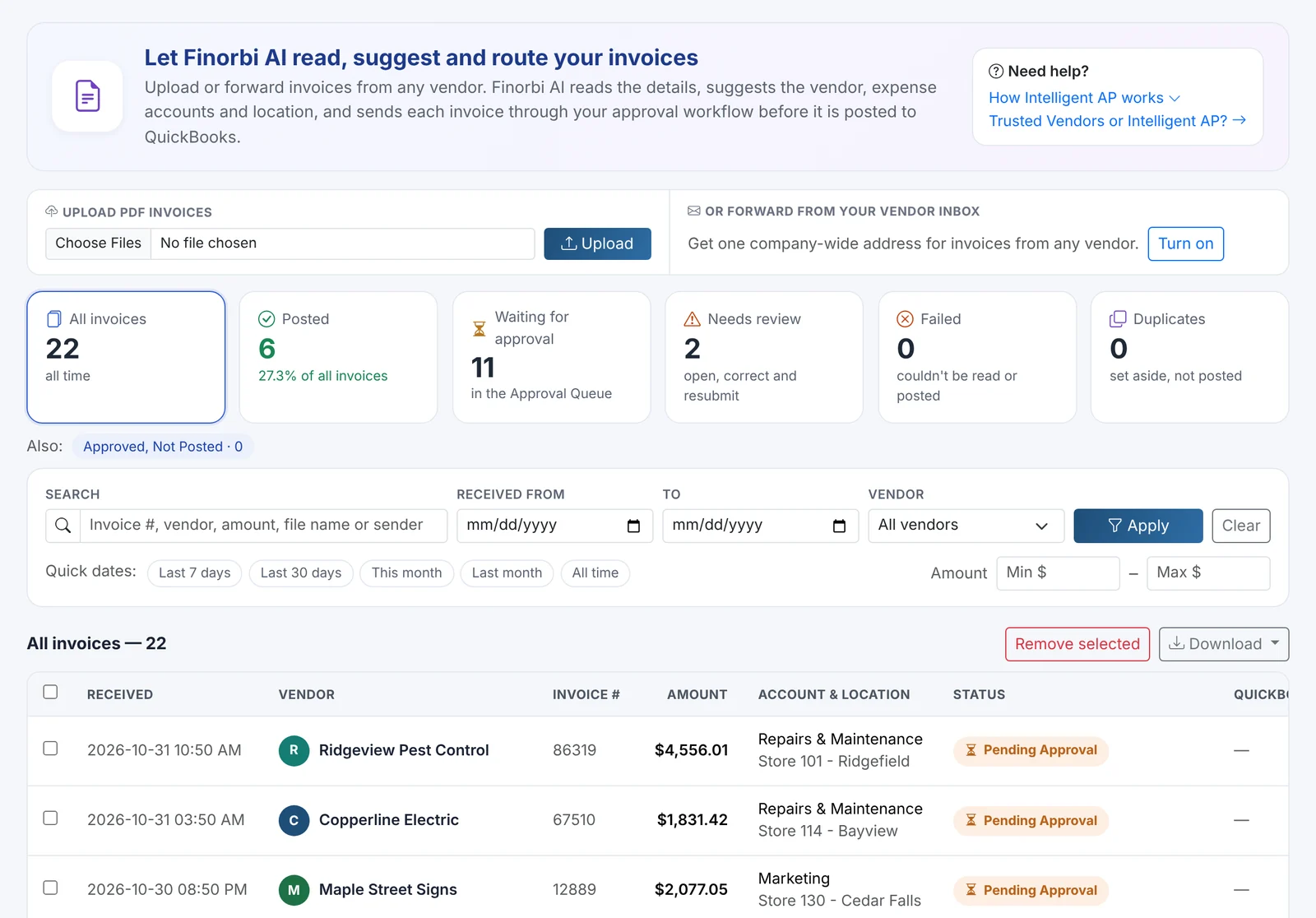
- Invoices come in - forwarded by email or uploaded as PDFs.
- AI reads and codes them - vendor, invoice number, dates, line items, account and location.
- Approval rules route them - to the right store manager, accountant or controller.
- Approved invoices post as Bills - with the invoice PDF attached in QuickBooks Online.
- Payment runs pay them - by ACH, check (including Deluxe) or credit card, with a complete payment pack for your files.
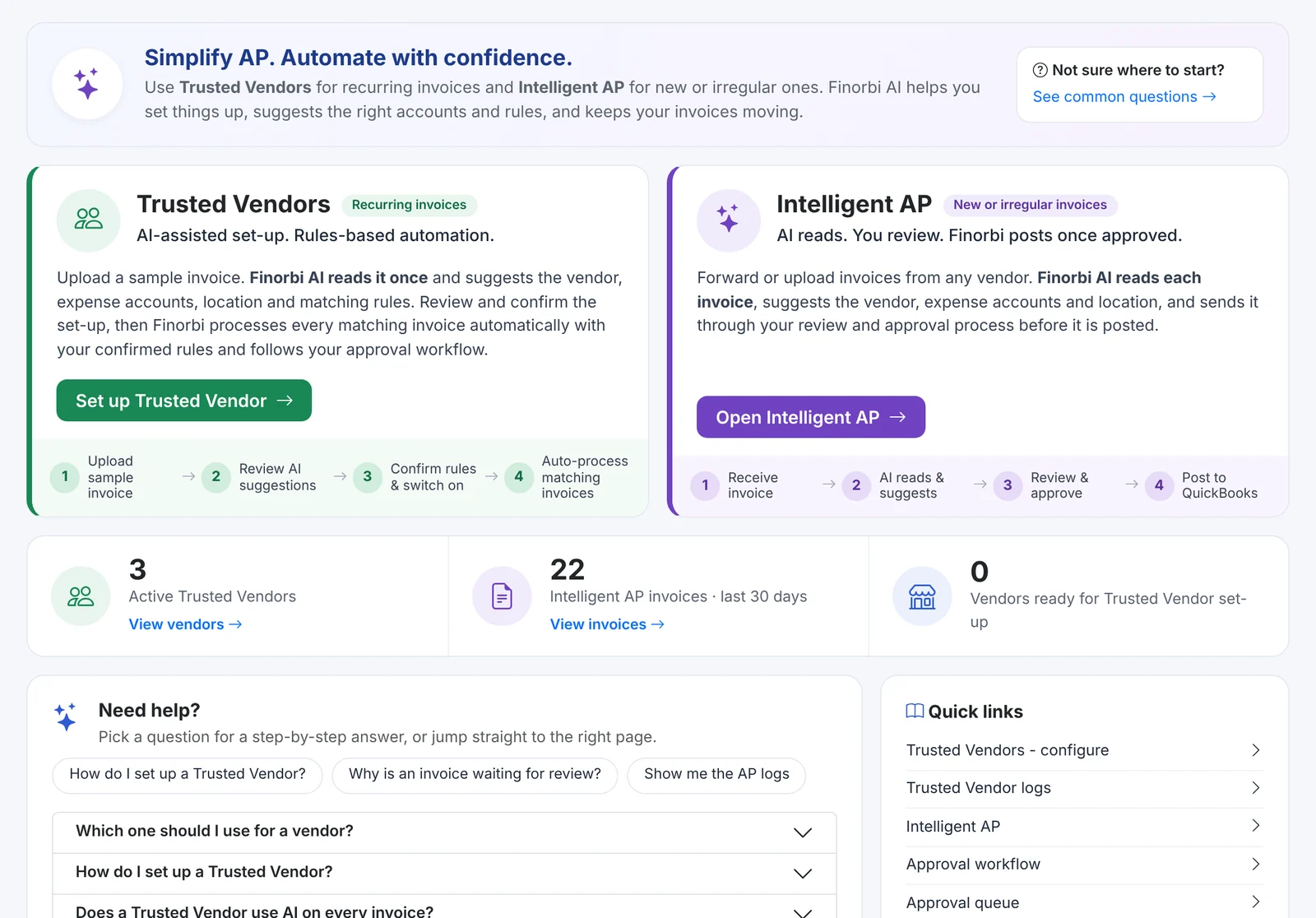
Two ways invoices enter Finorbi
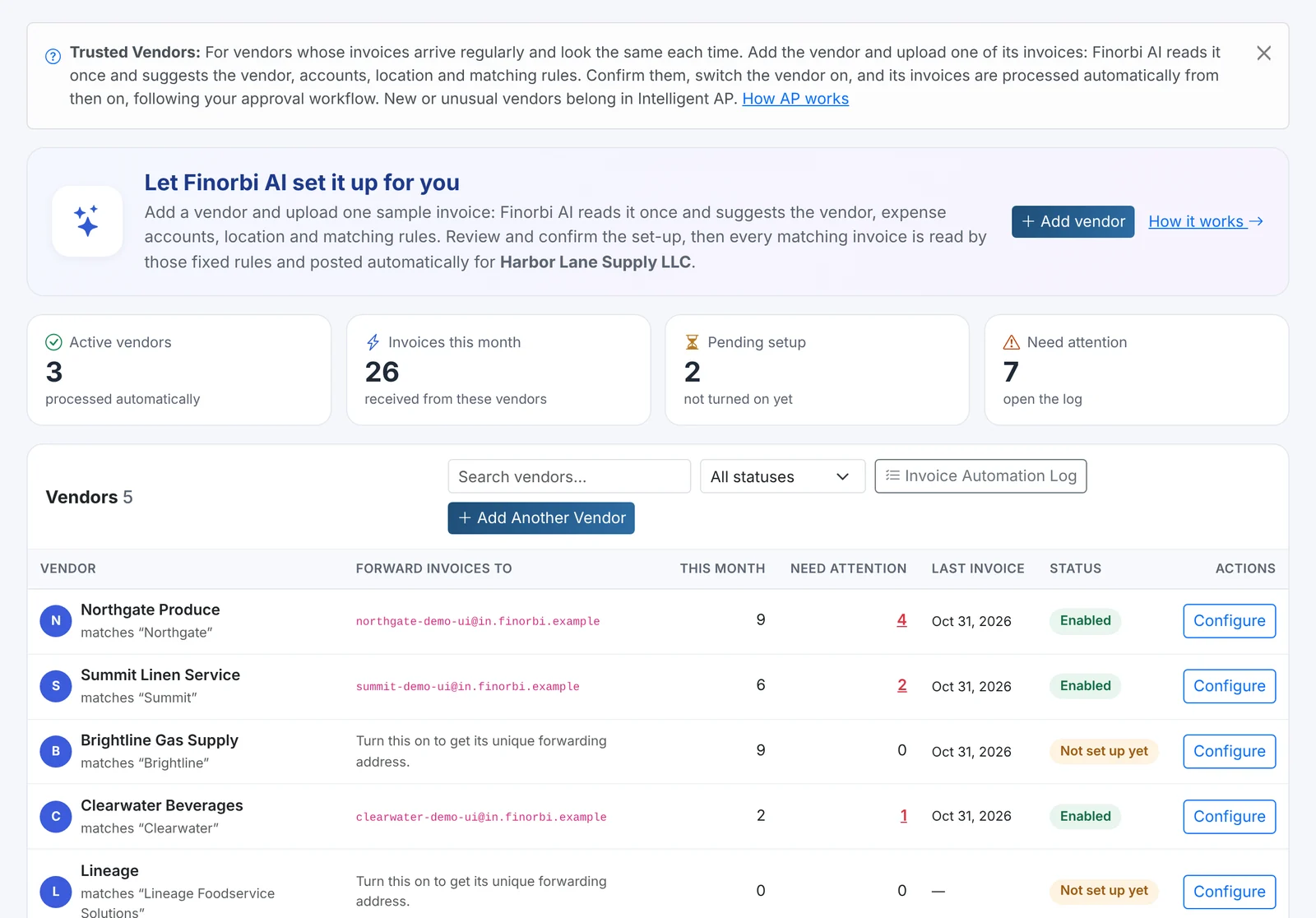
Trusted Vendors - recurring invoices on autopilot
Most businesses have a core group of vendors whose invoices look the same every time: food and beverage suppliers, linen services, utilities, waste haulers. For these, Finorbi gives each vendor its own forwarding address and a simple rule (which account, which location, how to read the invoice). From then on, invoices from that vendor are read, coded and posted the same way every time - and you only look at the exceptions.
Intelligent AP - every other invoice
Not every invoice is predictable. Repairs, one-off purchases, new suppliers - these go to Intelligent AP. Forward the invoice or upload the PDF and Finorbi's AI extracts the vendor, invoice number, dates, line items, totals and the store or location it belongs to. It suggests accounts based on how you coded similar invoices before, flags anything it isn't sure about, and puts the invoice in front of a person when it needs a decision.
Finorbi even watches for vendors that keep showing up in Intelligent AP and suggests turning them into Trusted Vendors, so your automation grows on its own.
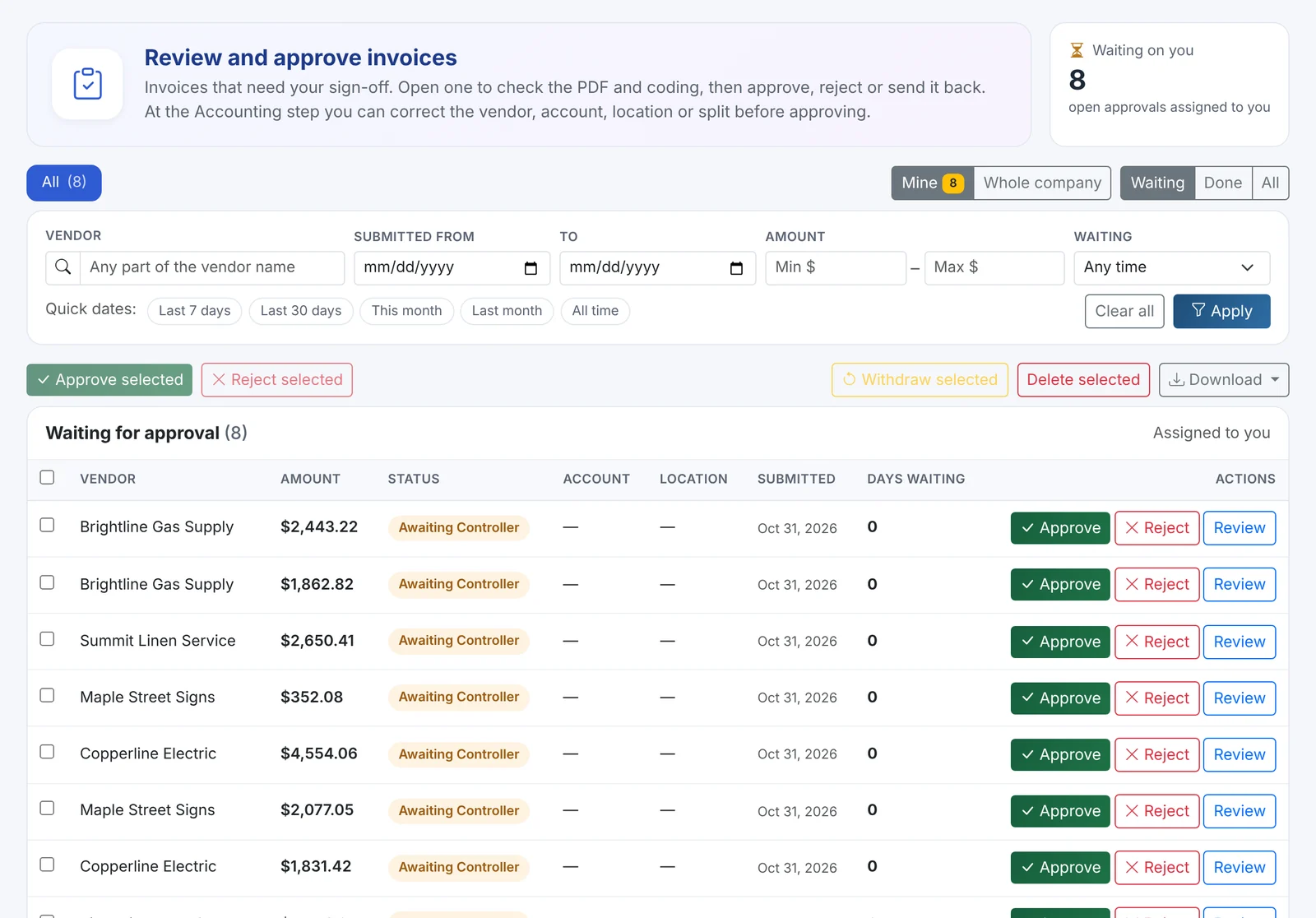
Approvals that match how your business really works
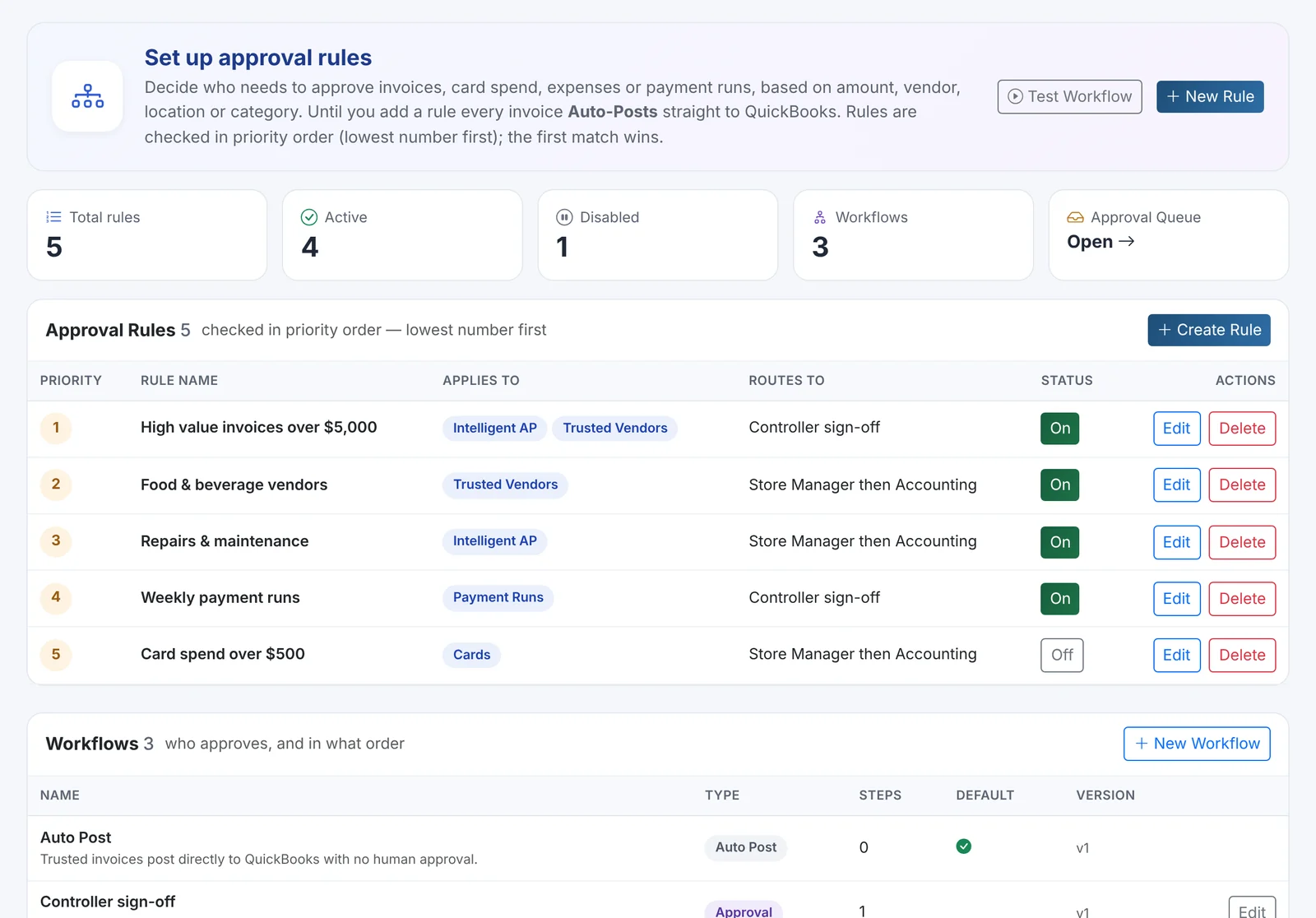
Approval Workflows let you decide who signs off on what - by amount, vendor, location, account or pipeline. A typical multi-location setup looks like this:
- Under $500 - posts automatically.
- $500 to $5,000 - the store manager for that location approves, then Accounting checks the coding.
- Over $5,000 - the Controller signs off as well.
Approvers can act from the Approval Queue or straight from the email Finorbi sends them, see the invoice PDF next to the coding, and approve, reject or send it back with a note. The person who submitted an invoice can never approve it themselves.
Posting to QuickBooks Online - done right
When an invoice is approved, Finorbi creates the Bill in QuickBooks Online with:
- the correct vendor (or creates the vendor if it's new and you've allowed it),
- each line coded to the right account and location,
- the invoice number, invoice date and due date,
- the original invoice attached to the Bill.
An invoice that covers several stores can be split by location into separate Bills, so every store's P&L carries its own share. Duplicate checks run before posting, so the same invoice can't be entered twice.
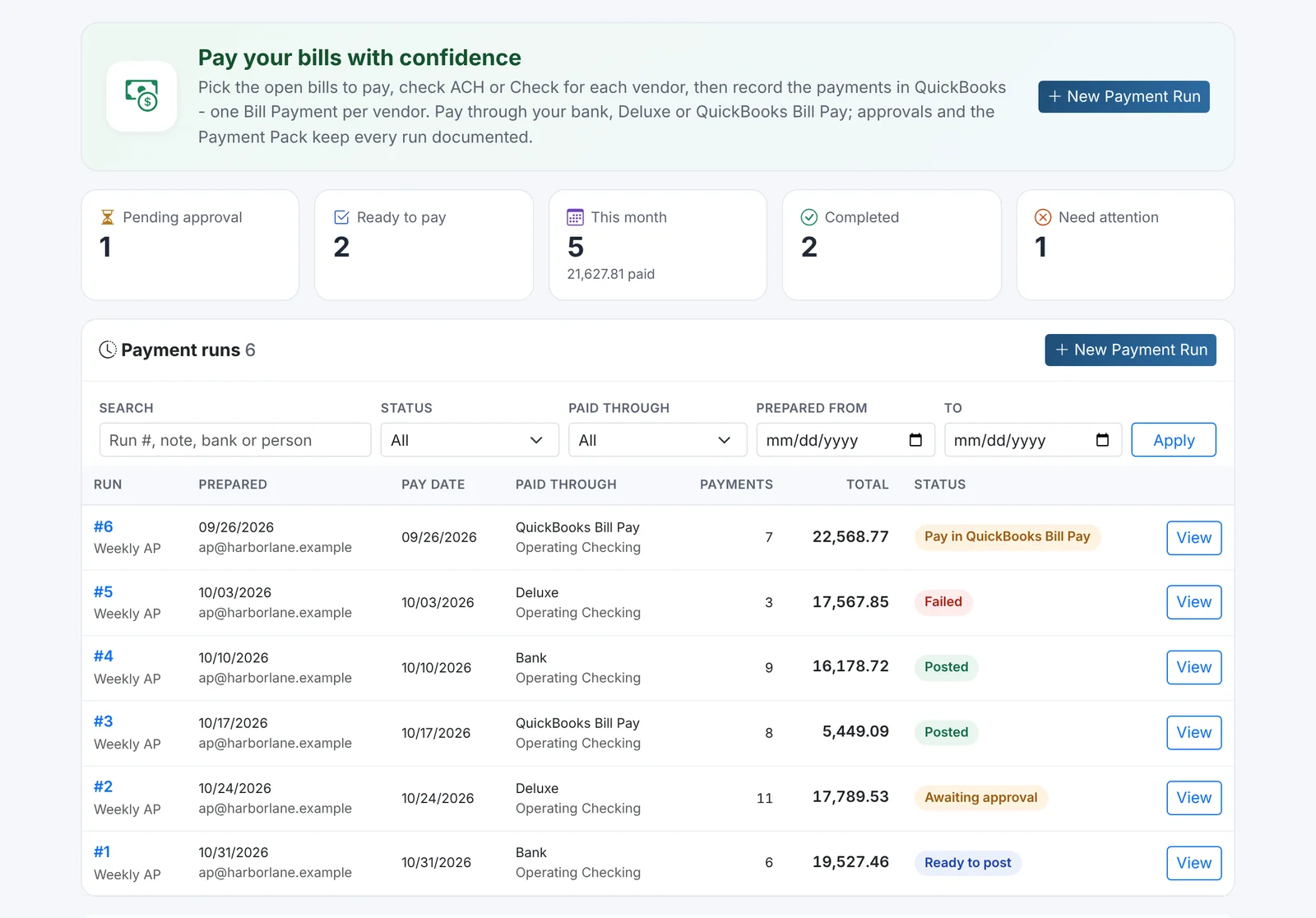
Paying bills: Payment Runs
Once bills are in QuickBooks Online, Payment Runs let you choose what to pay and how:
- Filter open bills by vendor, location, due date (overdue, next 7/14/30 days), amount and where the bill came from.
- Pay each vendor by ACH, check or credit card - Finorbi remembers each vendor's method.
- Apply each vendor's open credits automatically.
- Send the run for approval if your rules require it.
- Pay through your own bank, through Deluxe (Finorbi creates the batch file and numbers your checks) or through QuickBooks Bill Pay.
- Download a Payment Pack PDF: every vendor's payment, each invoice stamped PAID, and its full approval trail.
What this means for your team
| Before Finorbi | With Finorbi AP Automation |
|---|---|
| Keying every invoice by hand | AI reads and codes invoices; recurring vendors post automatically |
| Chasing approvals by email and text | Rules route invoices to the right approver, who acts in one click |
| Guessing the account and store | Suggestions learned from your own history, location detected from the invoice |
| Paper or scattered PDFs | The invoice is attached to every Bill in QuickBooks Online |
| Spreadsheet of what to pay | Payment Runs with filters, approvals and a complete payment pack |
Plans and limits
AP Automation is included in Professional + AP Automation (up to 1,000 AP invoices a month) and Professional + AP Automation Plus (up to 4,000 a month). Need more in a busy month? Extra invoice credits are available and carry over until used. Every new account starts with a 14-day full trial that includes AP Automation.
Get started
Connect your QuickBooks Online company, forward your first invoice and watch it arrive coded and ready for approval.