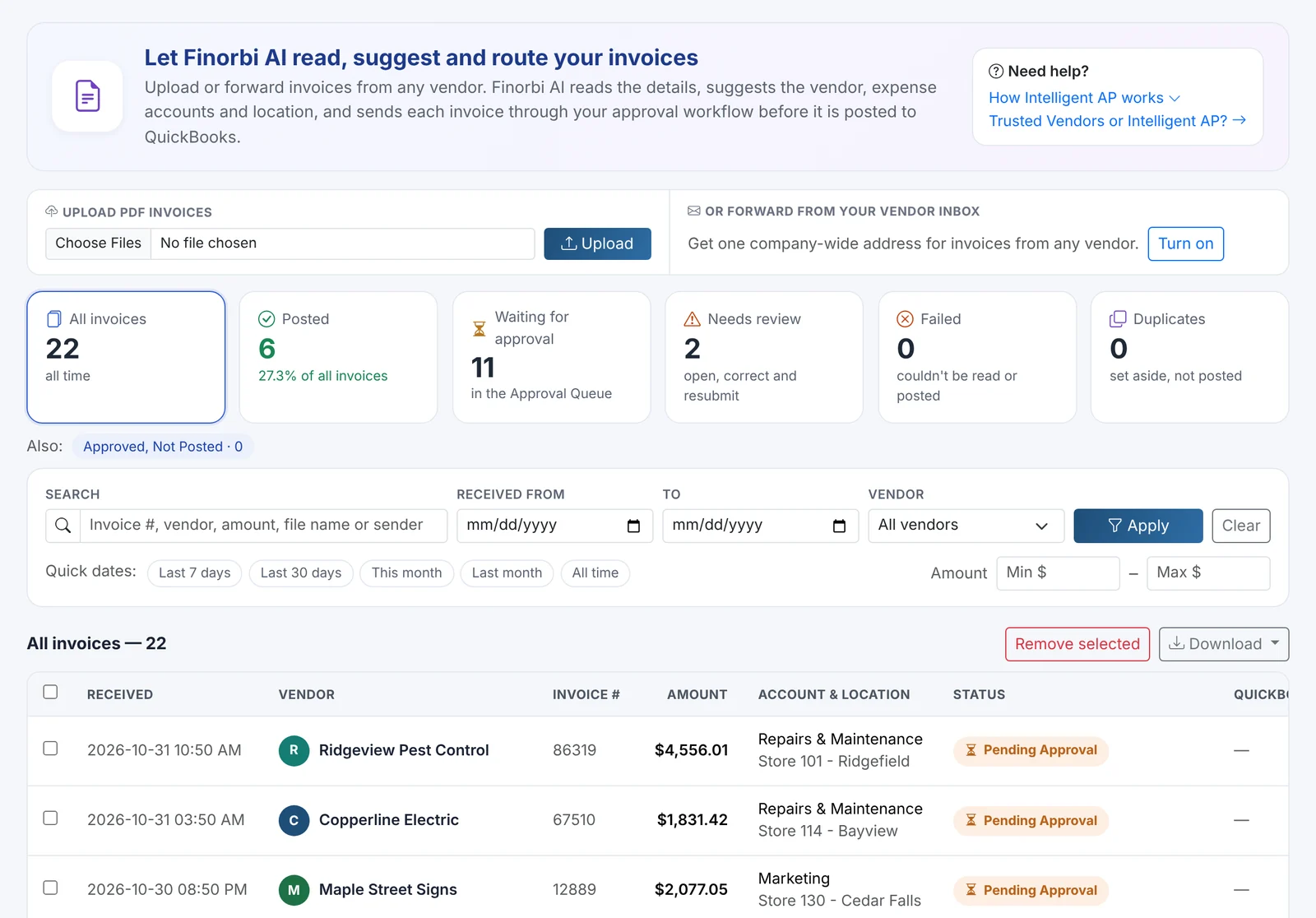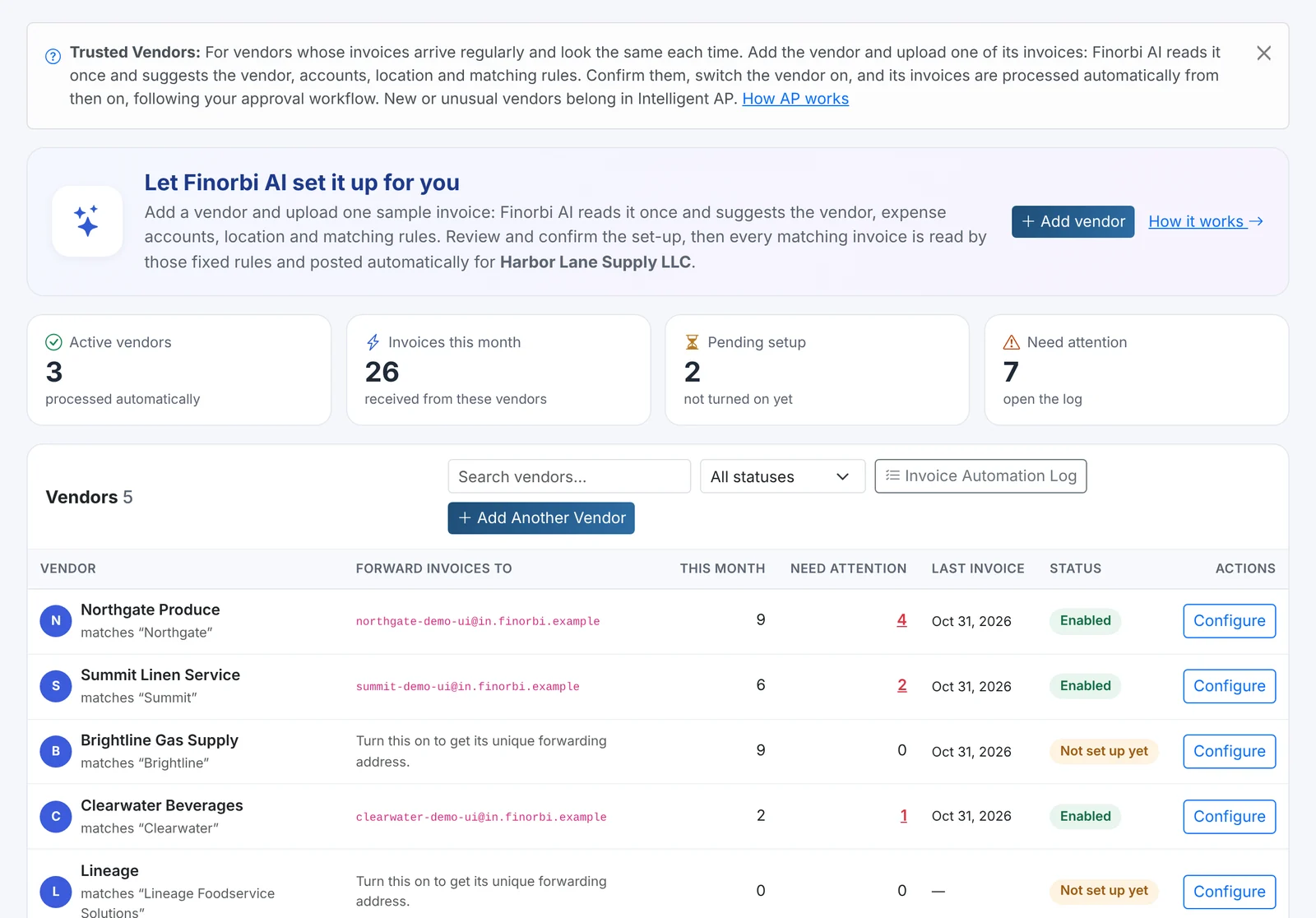
Company cards are convenient for the people spending and painful for the people coding. Each statement means dozens or hundreds of lines with cryptic merchant names, each needing a vendor, an account, a location - and a receipt. Then you have to make sure you haven't already entered half of them.
Company Cards in Finorbi turns a statement into coded, checked transactions ready to post to QuickBooks Online.
Upload any statement
Upload the statement exactly as your card issuer provides it - CSV, Excel or PDF. Finorbi:
- finds the transactions table (even with bank headings above it) and recognises the date, description and amount columns - or separate debit and credit columns,
- reads PDF statements with AI,
- works out whether charges are positive or negative for your issuer (you can switch it).
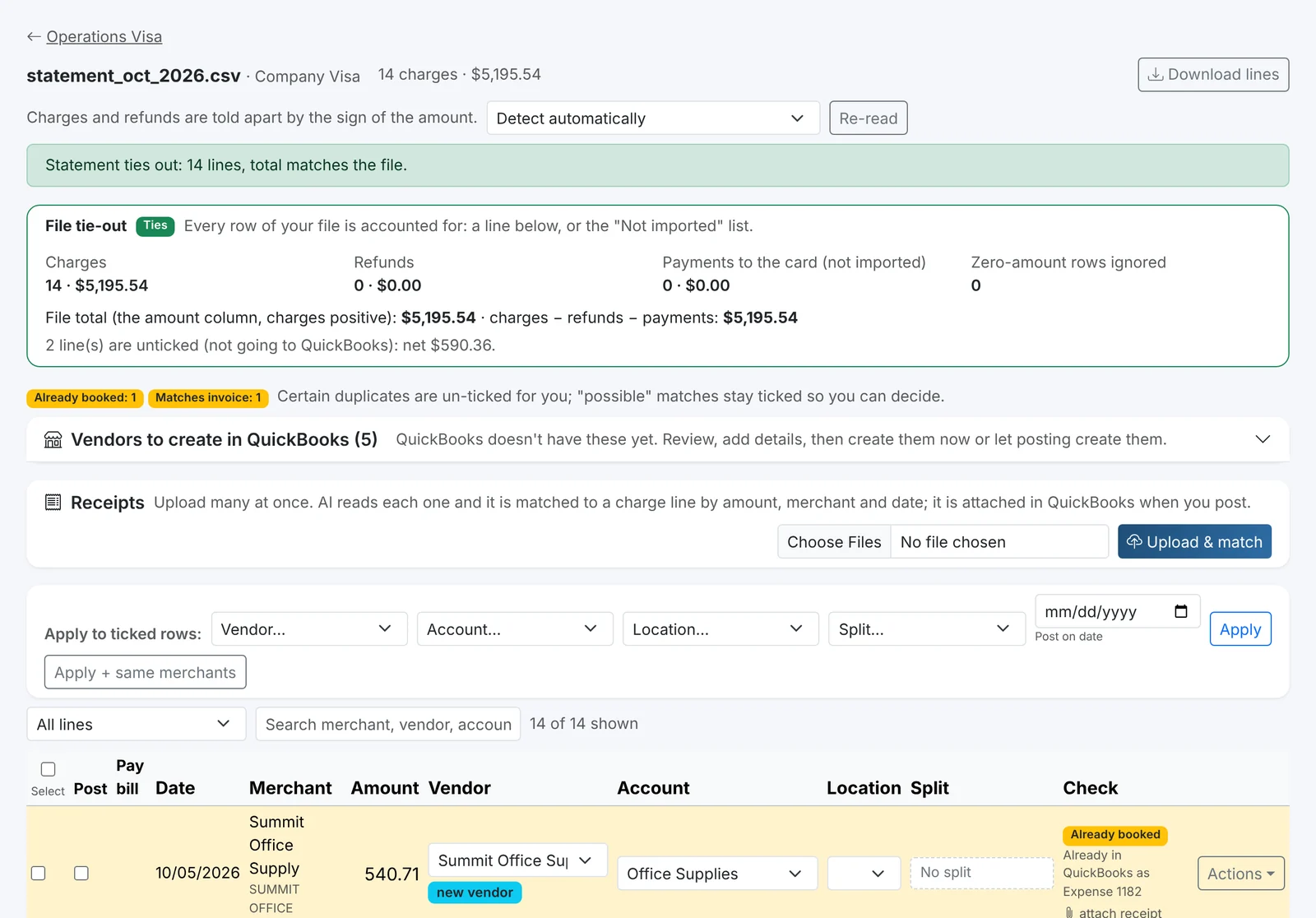
The statement always ties out
Finorbi checks that every row of your file is accounted for - charges, refunds, payments to the card and zero-amount rows - and shows the control total, so nothing is silently dropped.
Every charge, coded for you
For each line Finorbi suggests a vendor, account and location, using:
- Your rules - what you've chosen for that merchant before,
- Your history - how similar charges were coded,
- AI - to clean up merchant names and suggest the rest.
You review in one screen: filter, search, tick rows and apply a vendor, account, location or split to all of them - or to every line from the same merchant. Split one charge across accounts or locations, and change the posting date when the card date falls in a closed period.
Duplicates caught before they happen
Before anything posts, Finorbi checks QuickBooks Online and flags each line:
- Already booked - the charge is already in QuickBooks, so it's unticked for you.
- Matches an invoice / a bill exists - for example, a vendor bill that was paid by card; you can choose to pay that bill with the charge instead of creating a new expense.
- Duplicate upload - the same line was in a statement uploaded before.
- Possible match - left ticked for you to decide.
Refunds are recorded as vendor credits. New merchants can be created as vendors in QuickBooks Online, with details you review first.
Receipts, matched automatically
Upload a batch of receipt photos or PDFs at once: AI reads each receipt and matches it to the charge by amount, merchant and date. Receipts employees send from the Employee Expenses portal are matched too. When you post, the receipt is attached in QuickBooks Online.
Approval and posting
Card statements follow your Approval Workflows - for example, card spend over $500 goes to the store manager. Once approved, Finorbi posts each charge to the card's QuickBooks Online account with the vendor, account, location and receipt - and the statement is marked posted. Every line can be downloaded to Excel.
Built for many cards and many stores
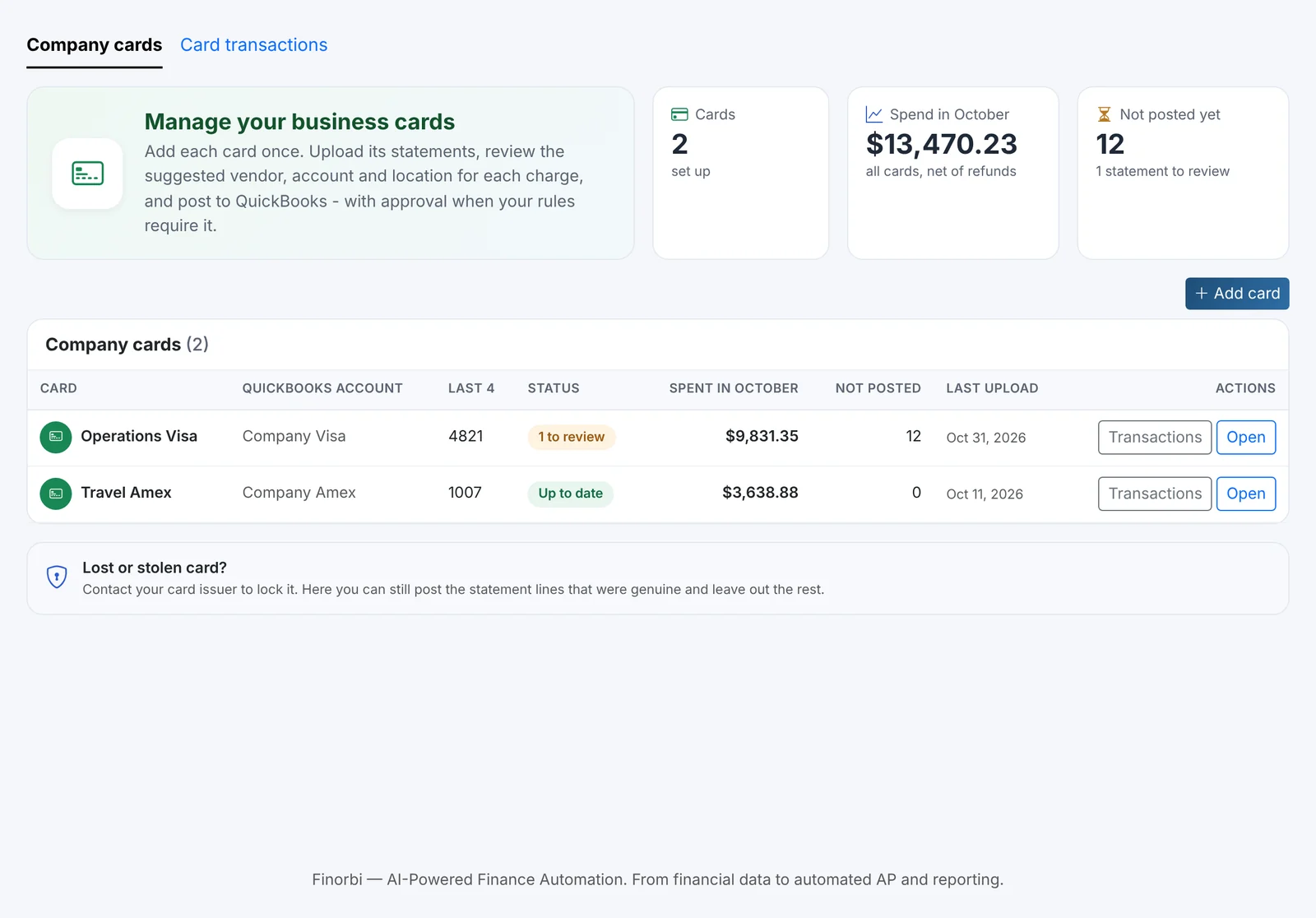
Track each card with a nickname and last four digits, record the cardholders, and see spend per card per month. Locations on every line mean each store carries its own card spend in your reports.
Company Cards is part of the AP Automation plans and is included in the 14-day full trial.