
You ran an import and something's wrong — a wrong date range, duplicate transactions, a misapplied account. The instinct to start deleting things manually, one at a time, is understandable, but it's also how a fifteen-minute fix turns into a multi-hour cleanup. Here's the right way to handle it.
Step 1: Stop and Assess Before You Touch Anything
Before deleting or editing a single transaction, figure out the actual scope of the problem:
- Was the entire import wrong (wrong file, wrong date range, wrong company), or just a subset of rows?
- Has anything downstream already been affected — a bank reconciliation, a report someone already pulled, a payment applied to one of the bad transactions?
Answering these two questions determines whether you need a full revert or a targeted fix, and rushing into manual deletion before you know the answer is how small mistakes turn into bigger ones.
Step 2: Check Your Import Tool's Activity Log First
If you imported through a tool that logs activity, this is your fastest path to understanding exactly what happened. A good activity log shows you precisely which transactions were created in that batch, when, and by whom — turning "something's wrong somewhere" into a specific, bounded list.
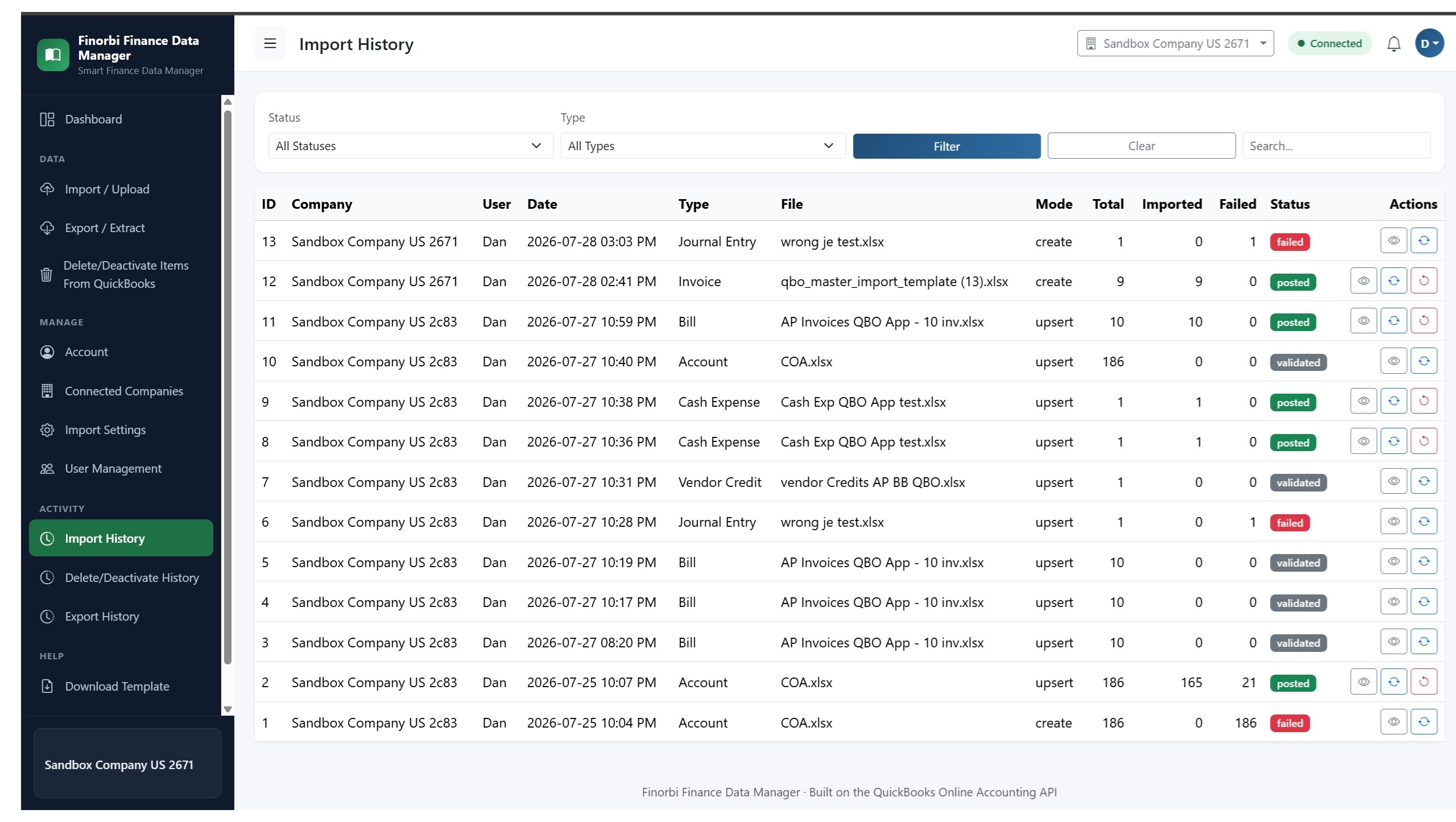
Step 3: Use One-Click Revert if Your Tool Supports It
If your import tool has a revert function — Finorbi does — this is almost always the fastest and safest option. A proper revert reverses exactly what that specific import created, without touching anything else in your file, including transactions entered manually or through other imports before or after.
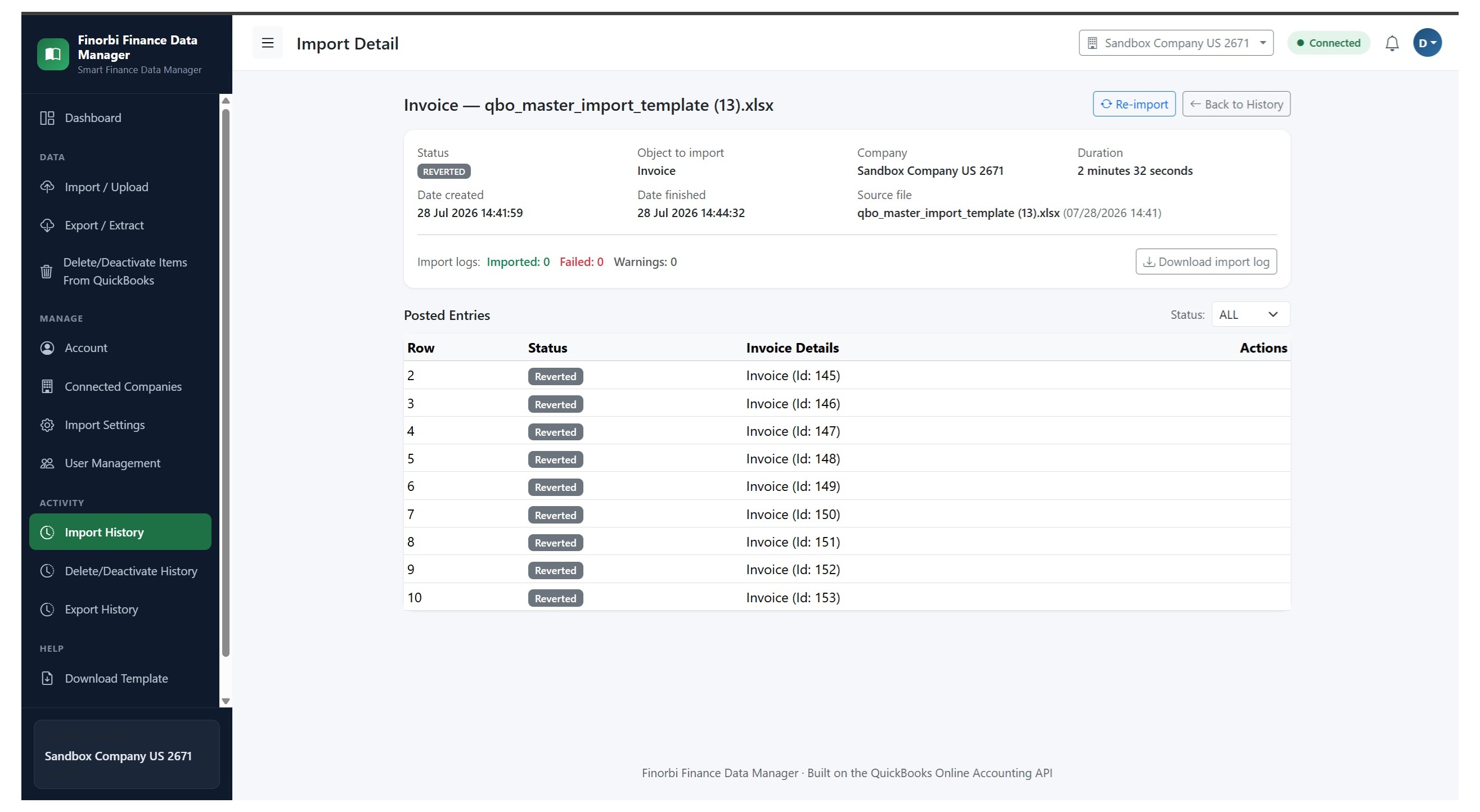
This is the single biggest reason to choose an import tool with revert support in the first place — it turns "I need to fix a bad import" from a stressful, error-prone manual project into a two-click action.
Step 4: If You Don't Have Revert, Use the QuickBooks Audit Log
If your import tool doesn't offer a revert function, QuickBooks Online's built-in Audit Log is your next-best tool:
- Go to Settings (gear icon) > Audit Log
- Filter by date and time range matching when the bad import ran
- Filter by user if the import ran under a specific login
- Review the list of transactions created in that window
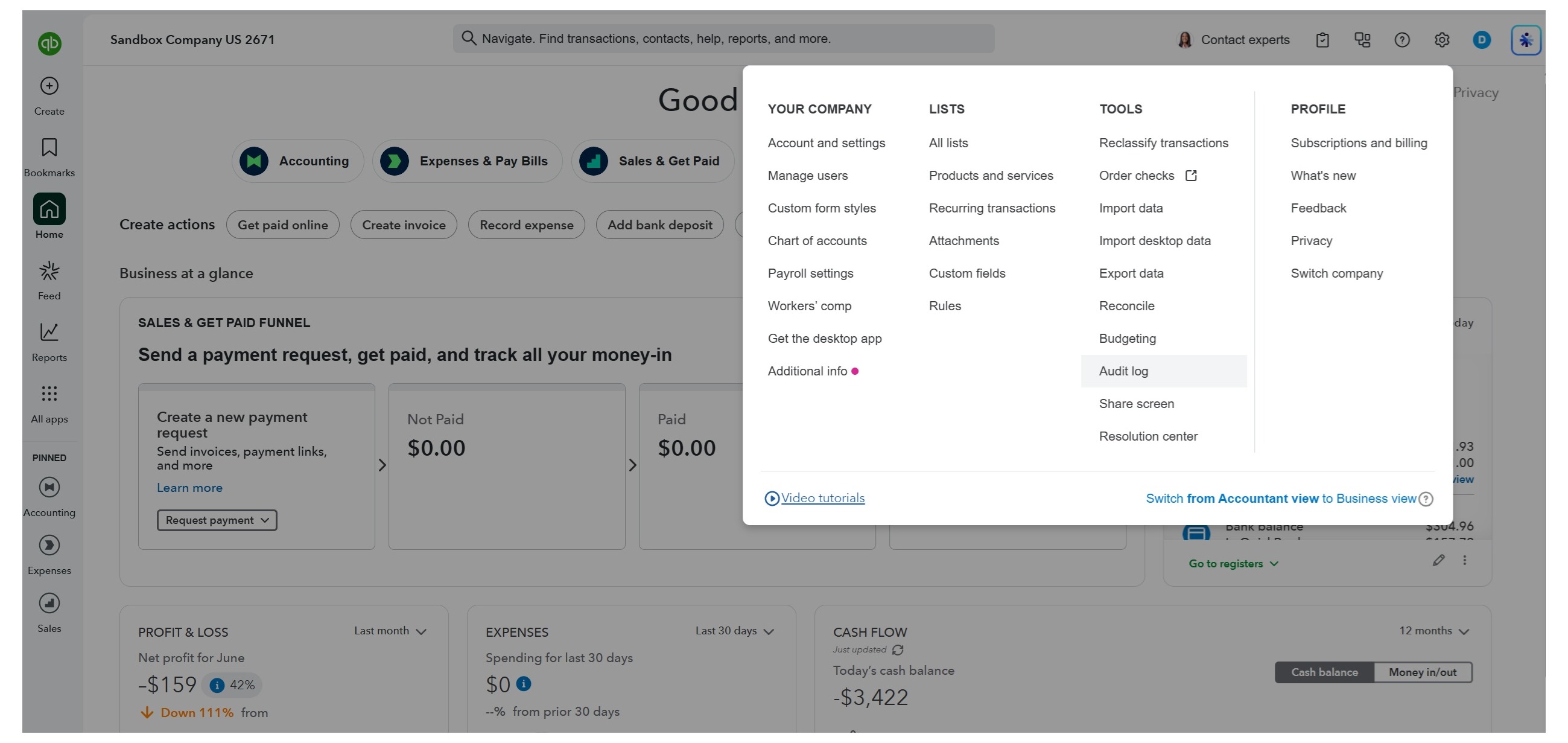
From here, you can identify every transaction that needs to be removed. For a large batch, look for a bulk-delete option in whatever import tool you have access to (many support deleting by date range or by a matching identifier) rather than deleting transactions one at a time through the standard QuickBooks interface.
Step 5: Check for Downstream Effects
Before considering the cleanup complete, check whether any of the bad transactions were:
- Applied to a payment — if a bad invoice had a payment applied to it, you'll need to unapply the payment before the invoice can be deleted
- Included in a bank reconciliation — deleting a reconciled transaction will throw off your reconciliation and needs to be handled carefully, ideally by reconciling again after cleanup rather than leaving it unresolved
- Referenced in a report already sent to a client — if a client-facing report was generated using the bad data, you may need to follow up with a corrected version
Step 6: Re-Import Carefully
Once cleanup is complete, fix the source issue in your spreadsheet — the wrong date range, the incorrect mapping, whatever caused the original problem — before re-importing. This time, lean on the preview step: review it carefully rather than skimming past it, since this is exactly the situation it exists to prevent.
How to Avoid This Next Time
- Always use the live preview before confirming an import — this catches the majority of issues before they ever post
- Import in smaller batches for large or unfamiliar datasets, so any issue is easier to isolate and undo
- Choose a tool with one-click revert as a non-negotiable feature, not a nice-to-have — it's the difference between a two-minute fix and an afternoon of manual cleanup
- Double-check date ranges and company selection before running any import, especially if you manage multiple client files and could plausibly select the wrong one